Degree Plan & Advising#
The degree plan provides a detailed view of a student’s progress toward completing their degree. This is also where the majority of advising will take place, as the Degree tab is what permits the advisor to select courses and actually submit the advising session.
Open a student’s profile and select Degree to view the student’s progress.
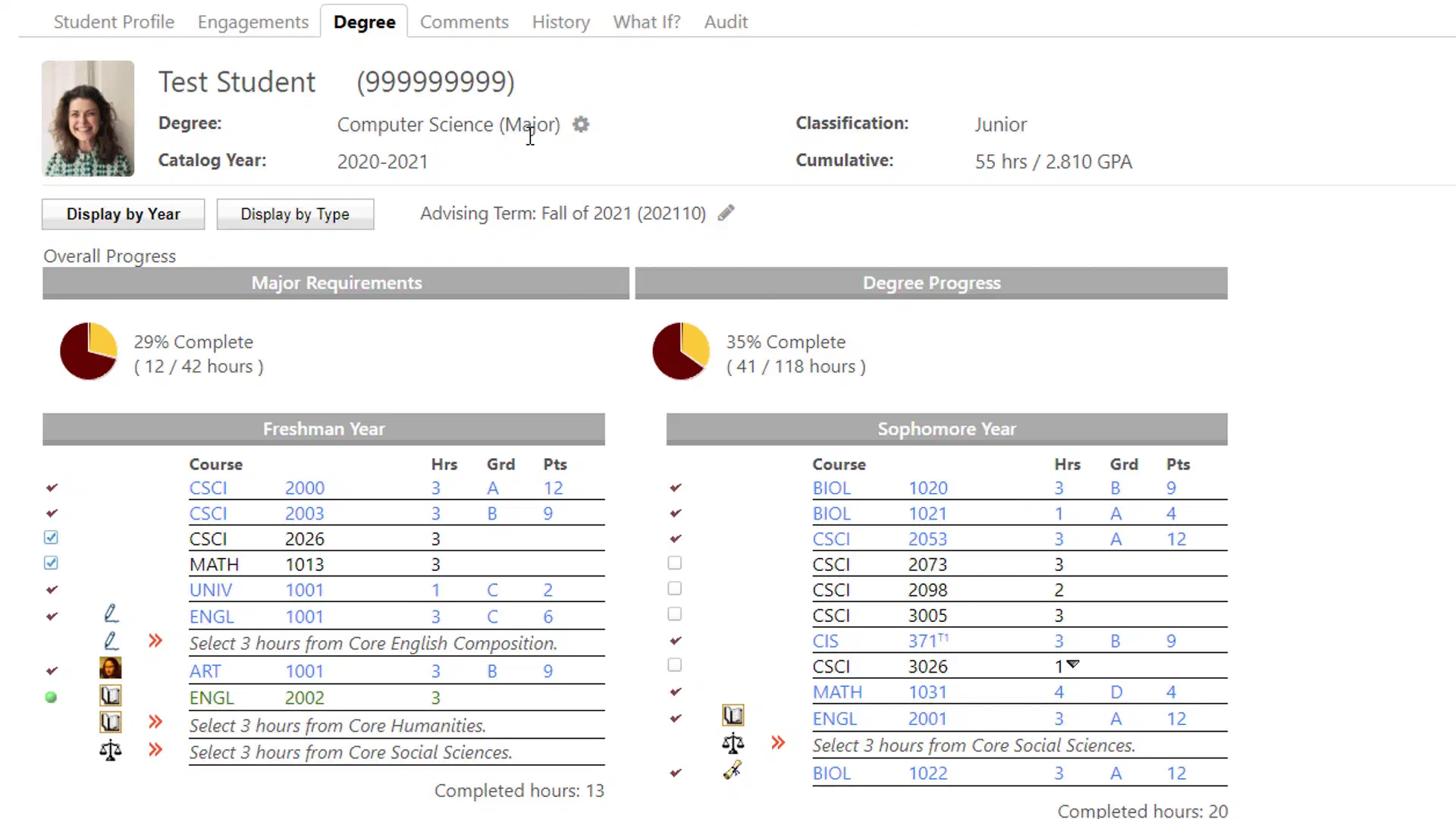
Understanding the Degree Plan#
The top of the degree plan provides an overview of the student’s degree and academic progress.
This can include:
- Degree and major
- Catalog year
- Classification
- Advising term
- Cumulative credit hours
- Cumulative GPA
- Overall degree progress
- Major requirements progress
Overall Progress#
The progress indicators at the top of the plan provide a quick summary of how much of the student’s degree and major requirements have been completed.
These percentages are a useful starting point, but advisors should review the individual requirements below them for a complete picture of the student’s progress.
Requirements#
Courses and elective groups are organized into blocks, according to the student’s degree requirements.
Each section shows information such as:
- Course number
- Credit hours
- Grade
- Points
- Completed requirements
- In-progress coursework
- Requirements that still need to be completed
Courses and requirements may be grouped by academic year, term, requirement type, or virtually any other grouping your institution may select.
Advising a Course#
When courses are available for advising (and not “locked” due to prerequisites or other reasons), a checkbox will appear beside the course.
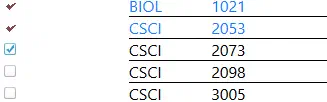
The advisor needs only to click the checkboxes of the advised courses, and save the advising session using the button at the bottom of the screen.
Course Details#
Each course row or elective group row is clickable, and will provide additional information when selected.
For example, a requirement may indicate that the student needs to select a specified number of credit hours from a particular group of courses.
FlightPath can also display the courses that satisfy a requirement and any available choices for completing it.
Substitutions#
Degree plans can include course substitutions or other administrative adjustments. You may or may not have permissions set to perform substitutions.
If a substitution has been entered for a student, it will appear in the degree plan with an “S” indicator. Clicking the row will display the original course requirement, as well as who created the substitution.
Transfer Credit#
Transfer courses which have equivalencies at your institution will automatically fill into the degree plan. Any which does not have a 1:1 equivalency will appear in a special “Transfer Credits” block near the bottom of the screen. They may still be manually substituted for courses and elective groups.
Courses Added by an Advisor#
Depending on your permissions and your institution’s configuration, you may be able to add advised courses to the degree plan for advising purposes.
These entries can be useful when discussing possible future coursework with a student.