Administrator’s Toolbox#
The Administrator’s Toolbox provides advanced tools for reviewing and managing a student’s courses, transfer equivalencies, substitutions, and course movements.
Access to the Administrator’s Toolbox requires elevated permissions. If you do not have the necessary permissions, the toolbox will not appear. See Permissions for how access is assigned to roles.
Accessing the Administrator’s Toolbox#
Open a student’s Degree tab and scroll toward the bottom of the degree plan.
Select Administrator’s Toolbox to open a window containing four tabs:
- Transfers - Manage transfer course equivalencies.
- Substitutions - Review and remove course substitutions.
- Moved - Restore courses that have been removed from the degree plan.
- Courses - View all courses on the student’s academic record and their current assignments.
Transfers#
The Transfers tab displays the student’s transfer courses and their assigned equivalencies at your institution.
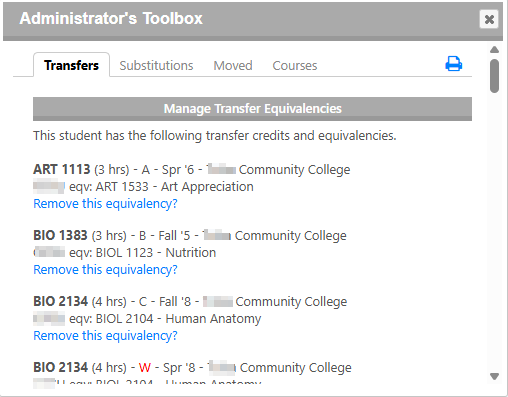
For each transfer course, FlightPath displays information such as:
- Original course name and credit hours
- Grade and term
- Institution where the course was taken
- Equivalent course at your institution, if one has been assigned
Managing Transfer Equivalencies#
An equivalency tells FlightPath which course at your institution corresponds to a course the student completed elsewhere.
If an equivalency is incorrect or should no longer apply, select Remove this equivalency? beneath the transfer course.
Previously removed equivalencies can also be restored from this tab.
Removing an equivalency does not remove the original transfer course from the student’s academic record.
Substitutions#
The Substitutions tab displays course substitutions that have been made for the student.
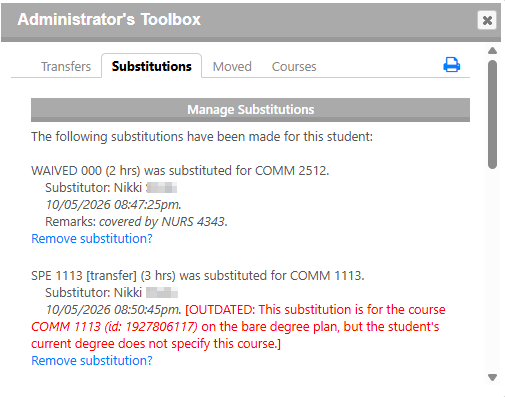
Each substitution includes:
- The course being used as the substitution
- The original course requirement being satisfied
- The name of the person who made the substitution
- The date and time the substitution was made
- Any remarks entered when the substitution was created
To remove a substitution, select Remove substitution? beneath the appropriate entry.
Outdated Substitutions#
Substitutions in FlightPath are intentionally preserved when a student changes majors, catalog years, or is evaluated using What-If.
For example, suppose a student is pursuing a BA in English under the 2025 catalog and receives several approved course substitutions.
If the student changes to the 2028 catalog, many of those substitutions may still be valid. Rather than automatically removing them, FlightPath preserves the previously approved substitutions.
However, suppose the student changes from BA-English to BS-Computer Science. Some of those substitutions may no longer apply to the student’s new degree requirements.
FlightPath identifies these as Outdated Substitutions.
Outdated substitutions are highlighted in red in the Administrator’s Toolbox, along with an explanation of why they are considered outdated.
Why Outdated Substitutions Matter#
Even though a substitution is outdated, the course involved may still be reserved for that substitution.
This can prevent the course from:
- Filling another requirement in the student’s current degree plan.
- Being used in a different substitution.
For example, if SPE 1113 was previously substituted for a requirement in another degree plan, it may not be available for use elsewhere until that outdated substitution is removed.
Resolving an Outdated Substitution#
Before removing a substitution, review the original requirement, the person who approved it, the date it was created, and any available remarks.
If the substitution is no longer appropriate:
- Locate the outdated substitution in the Substitutions tab.
- Select Remove substitution?
- Return to the student’s degree plan and review the available courses.
Removing the outdated substitution releases the course so that FlightPath can evaluate it for other requirements or allow it to be substituted elsewhere.
Important: An outdated substitution is not necessarily an error. FlightPath preserves substitutions to avoid losing previously approved academic adjustments when a student’s degree information changes. Review each substitution before removing it.
Moved#
The Moved tab displays courses that have been manually removed from a student’s degree plan or marked as unfulfilled within an elective group.
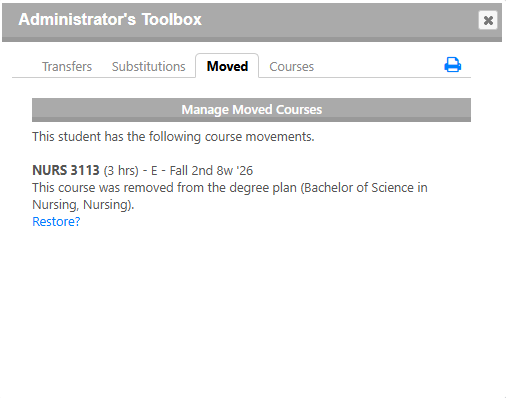
For each moved course, FlightPath displays information such as:
- Course name and credit hours
- Grade and term
- The degree plan from which the course was removed
Restoring a Moved Course#
To restore a course:
- Open the Moved tab.
- Locate the course you want to restore.
- Select Restore? beneath that course.
Restoring the course makes it available for FlightPath to evaluate and assign to degree requirements again.
Important: The Administrator’s Toolbox is the only place where removed or moved courses can be restored. If a course was manually removed from a degree plan or marked as unfulfilled in a group, it must be restored here before it can be used again.
Courses#
The Courses tab displays a complete list of the student’s courses, including courses that may not currently be filling requirements in the degree plan.
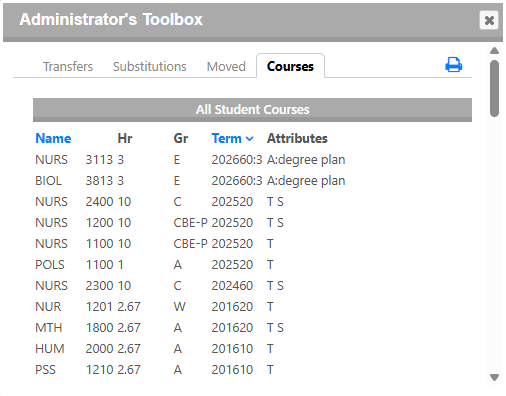
The table includes:
| Column | Description |
|---|---|
| Name | Course subject and number |
| Hr | Credit hours |
| Gr | Grade |
| Term | Academic term |
| Attributes | Codes describing how FlightPath is currently handling the course |
Course Attributes#
The Attributes column provides additional information about each course.
Common attributes include:
| Code | Meaning | Description |
|---|---|---|
| A | Assigned | The course is assigned to a degree plan or group requirement. The assignment location is displayed. |
| T | Transfer | The course is a transfer course. |
| S | Substitution | The course is involved in a substitution. |
A course may have more than one attribute. For example, T S indicates that a transfer course is also involved in a substitution.
The Courses tab is particularly useful when troubleshooting a student’s degree plan. It allows administrators to determine whether a course has already been assigned to a requirement, is being used in a substitution, or is otherwise accounted for.