Finding Students#
FlightPath provides several ways to locate and load students. Advisors can search for an individual student or view a list of students assigned to them as advisees.
Searching for a Student#
Use the Search screen to locate a student by information such as their name or campus-wide ID (CWID).
By default, you can see the list of students assigned to you as advisees.
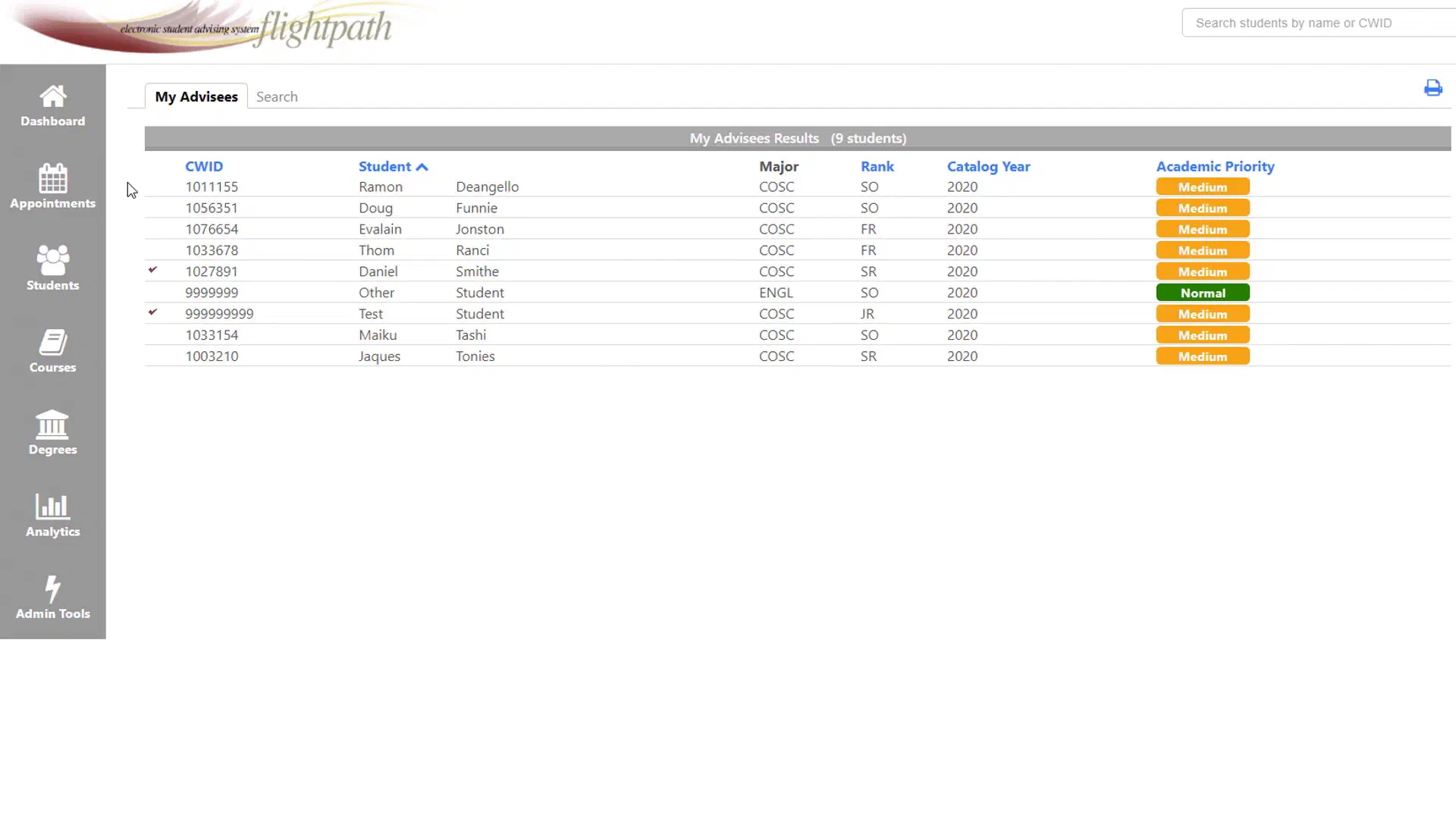
Or, depending on your permissions, you can enter a student’s information into the search field and/or select a major and whether or not to also include “inactive” students.

Once you select a student, FlightPath opens the student’s profile.
Tip: FlightPath must load and cache a lot of data to function correctly. If you ever need to “reload” a student, go back to the search page and click their name again. This will cause FlightPath to refresh all student data, ignoring cache.
Search Results#
After searching for students, you will see:
- Student name
- Campus-Wide ID (aka CWID)
- Major
- Rank (aka Classification)
- Catalog year
- Academic Priority
These fields may be sorted for your convenience by clicking the header text.
Depending on your institution’s configuration, additional information may be displayed.
Opening a Student Profile#
Select a student from the search results or your advisee list to open the student’s profile.
The student profile provides access to additional information and tools, including:
- Student information
- Engagements
- Degree audit
- Comments
- Advising history
- What-If analysis
- Audit information
See Student Profile for more information.