Groups with Branches#
Most elective groups are simple lists of courses from which a student can choose.
Some requirements are more complicated. The available choices may depend on a course that the student has already selected.
FlightPath supports these situations through group branches.
When to Use Branches#
For example, suppose a Humanities requirement allows either:
- 1 ENGL course and 2 HIST courses, or
- 2 ENGL courses and 1 HIST course.
A simple list of English and History courses cannot express this relationship.
A group with branches can.
How Branches Work#
Branches are configured on the Edit Group page.
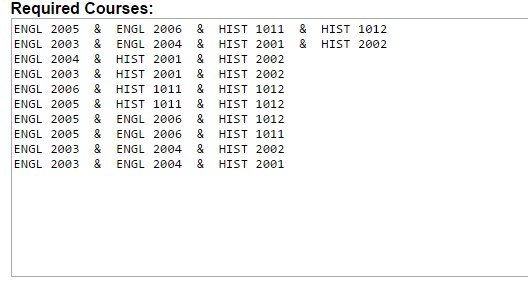
Each row represents a branch for the group.
When a student or advisor first loads the group, the available course options can be presented as a normal list.
After a course is selected, FlightPath can use the branch configuration to determine which options should be available the next time the group is loaded.
For example, selecting a particular English course can cause FlightPath to display a different set of remaining choices.
Planning a Branched Group#
Before configuring branches, write the academic requirement as a set of possible paths.
For example:
Option A:
1 ENGL + 2 HIST

Option B:
2 ENGL + 1 HIST
Then determine which course selections cause the student to move from one path to another.
This makes it easier to construct the branch configuration correctly.
Important Considerations#
Branches are an advanced feature and can become difficult to maintain when a requirement has many possible paths.
Before implementing a branched group:
- Write down the actual academic requirement.
- Identify every possible path through the requirement.
- Determine what the student can select at each stage.
- Test the group with representative student records.
- Verify that the resulting degree plan behaves as expected.
If a requirement can be represented with a normal elective group, use the simpler configuration.