Group Definitions#
A group definition provides a way to build a large list of courses without entering every course manually.
Instead of typing hundreds of courses into the Required Courses field, you can use commands that add or remove courses based on their subject and course number.
Opening the Definition Editor#
Create or edit an elective group.
Select Edit Definition to open the definition editor.
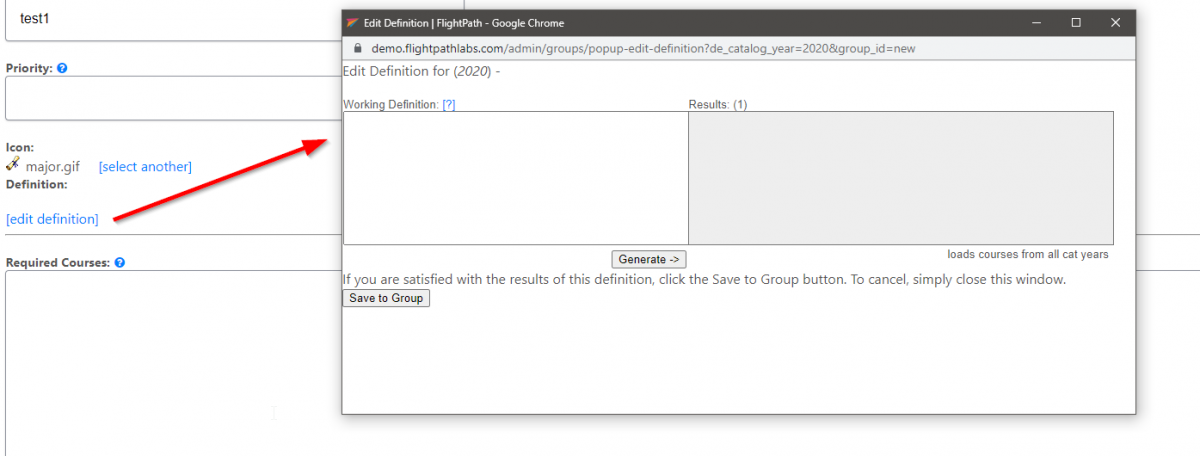
The definition uses commands in the following format:
add PATTERN
rem PATTERN
FlightPath uses a period (.) to separate the course subject from the course number.
An asterisk (*) acts as a wildcard.
Examples#
Add All Courses#
add *.*This adds all courses.
Remove an Entire Subject#
rem BIOL.*This removes all courses with the BIOL subject.
Remove a Course Number Pattern#
rem *.3*This removes courses whose course number matches the pattern.
Add Courses Back#
Commands are processed in order, so you can remove a broad set of courses and then add a subset back.
For example:
add *.*
rem BIOL.*
add C*.*
This first adds all courses, removes Biology courses, and then adds courses whose subjects begin with C.
Remove a Specific Course#
rem ACCT.2012This removes the specific course ACCT 2012.
Notice that definition syntax uses a period between the subject and course number:
ACCT.2012while the normal course name is displayed with a space:
ACCT 2012Commands Are Processed in Order#
FlightPath executes definition commands from top to bottom.
Later commands can therefore modify the results of earlier commands.
For example:
add *.*
rem BIOL.*
add BIOL.4*
This adds all courses, removes all Biology courses, and then adds Biology courses matching the final pattern back into the list.
The order of the commands matters.
Generating the Course List#
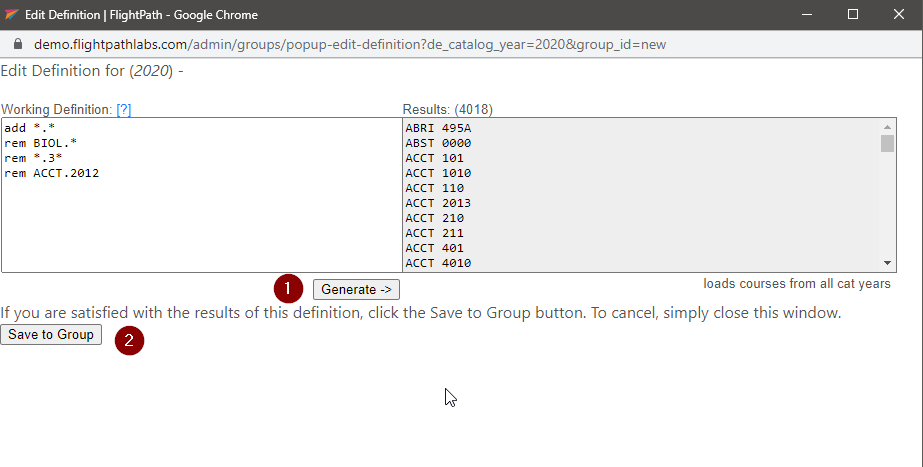
After entering the definition, select Generate.
FlightPath will assemble the resulting list of courses.
Review the generated list carefully.
When the list is correct, select Save to Group.
When to Use Definitions#
Definitions are particularly useful when:
- A group contains a large number of courses.
- Courses follow a predictable subject or numbering pattern.
- Maintaining an explicit list of every course would be cumbersome.
- A broad course set needs a small number of exclusions.
For smaller groups, entering courses directly into Required Courses may be easier to understand and maintain.
Re-Generate All Definitions#
A convenient feature, especially if you have many course changes across different groups with definitions, is to run the Process all group definitions… for this year option from the Groups list.
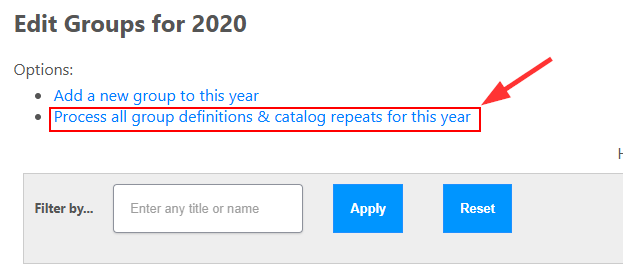
This will re-run and apply all group definitions for every group in the year you are currently editing.