Managing Degree Plans#
Degree plans define the requirements a student must complete to earn a degree, minor, concentration, track, or other academic program represented in FlightPath.
A degree plan is composed of individual courses and groups, organized into semester blocks.
Opening the Degree Plans List#
From the Admin Console, locate the Data Entry section near the bottom of the page.
Select Degree Plans for [catalog year].
The resulting page displays the degree plans available for that catalog year.
Understanding Degree Plan Levels#
FlightPath uses three levels of degree plans.
Note: all degree plans are identified by a “major code”, regardless if they are actually majors, minors, concentrations, etc. The code used to identify them is still called their major code.
Level 1#
A Level-1 degree plan represents a program that a student can graduate in.
Examples include:
- Bachelor of Arts in English
- Bachelor of Science in Biology
- Associate of Science in Nursing
Level 2#
A Level-2 degree plan is generally used for a minor or another secondary academic program that is not dependent on a particular major.
For example, if a student majors in Biology and minors in Political Science:
- Biology is a Level-1 degree plan.
- Political Science is a Level-2 degree plan.
Level-2 degrees are degree plans which can be added to the student’s coursework completely independently of their Level-1 degree, and do not alter the requirements of the Level-1 degree.
Level 3#
A Level-3 degree plan is internally called a track. It can also represent a concentration, emphasis, or similar program that exists only in conjunction with another degree plan.
For example, a Biology degree might have a Virology concentration. The Biology degree is the primary degree plan, while Virology is a Level-3 degree plan attached to it.
The Level-3 degree plan might be stored in your SIS (as is often the case for concentrations), or, it might purely be a “degree option” selected within FlightPath, which would not appear in your SIS. Contact your FlightPath technical support contact for more details.
Creating a Degree Plan#
Select Add a new degree plan.
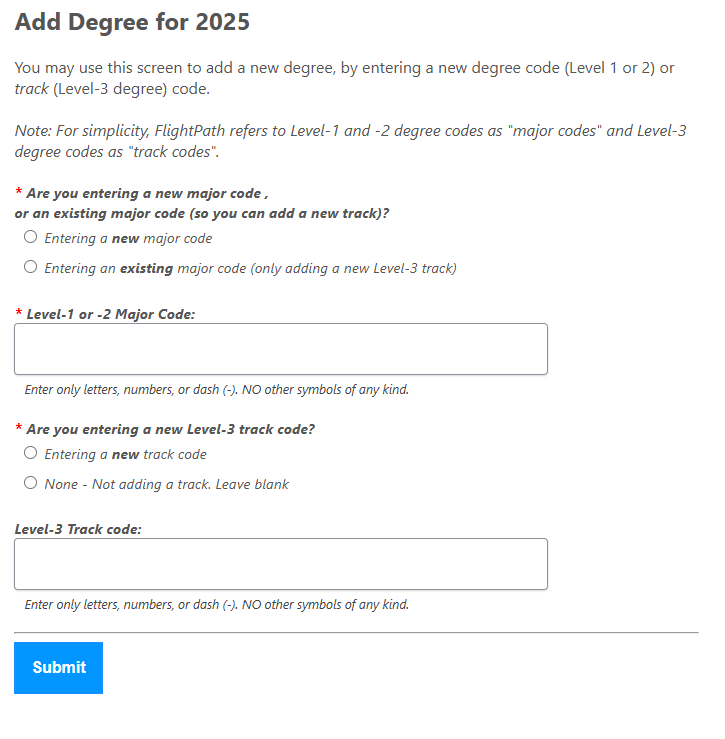
FlightPath will ask for the major code and degree-plan level.
If you are creating a new degree plan, select the option to enter a new major code and provide the appropriate code.
For a Level-3 track, select the appropriate track option.
After the degree plan is created, return to the degree list and select the new degree plan to open its edit form.
Editing a Degree Plan#
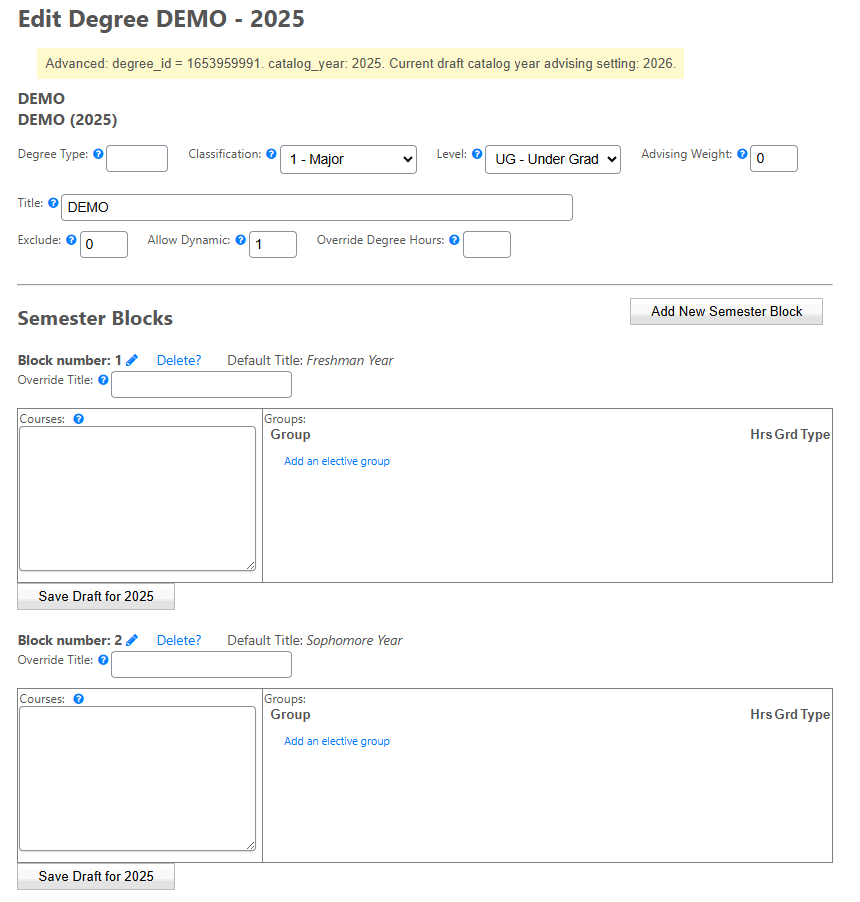
The top portion of the degree-plan form contains several important settings.
Degree Type#
The Degree Type is the displayed degree designation.
Examples include:
BA
BS
AS
PhD
This field is primarily used for display.
Classification#
Classification identifies the degree-plan classification configured for your institution, such as Major, Minor, or another category.
The available classifications depend on your FlightPath configuration.
Level#
Level identifies the student level associated with the degree plan, such as undergraduate or graduate.
Advising Weight#
Advising Weight affects how FlightPath handles a degree plan when it is combined with other degree plans.
It influences:
- How degree plans are displayed in lists.
- The order in which FlightPath evaluates degree plans when assigning courses.
Lower values have greater precedence. A value of 0 is appropriate for a degree plan that should be handled normally.
Higher values cause a degree plan to move later in the evaluation order.
Tracks (Level-3 degree plans) should generally use the same Advising Weight as their parent Level-1 or Level-2 degree plan.
Exclude#
Set Exclude to 1 when a degree plan should no longer appear as a What-If option but must remain in FlightPath because existing students may still be using it.
Otherwise, leave this value at 0.
Allow Dynamic#
Allow Dynamic determines whether the degree plan can be combined with other degree plans.
In most cases, this should be enabled (1).
Override Degree Hours#
FlightPath normally calculates the total number of hours required to complete a degree.
If the institution requires a different total, enter the desired value in Override Degree Hours.
In most cases, this field can remain blank.
Level-3 Tracks#
Level-3 tracks have additional fields.
Use the ? help links beside those fields for explanations of the options available in your installation.
Semester Blocks#
A degree plan is divided into Semester Blocks.
Despite the name, a block does not necessarily represent a literal semester. Blocks can represent semesters, academic years, terms, phases of a program, or another organizational category.
Each block has a default title. You can change the displayed title using Override Title.
Within each block, you can specify courses and elective groups.
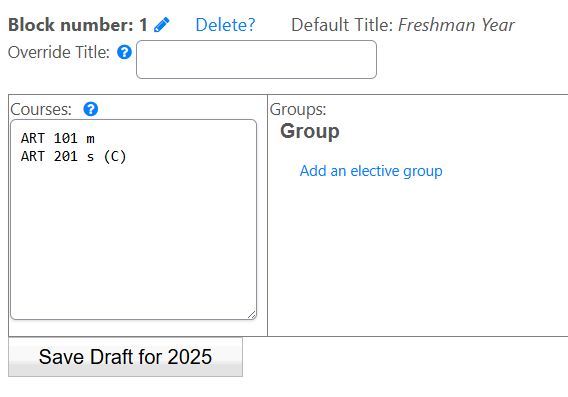
Adding Courses#
At their most basic, courses are entered one per line using the format:
SUBJECT COURSENUMFor example:
ENGL 101
ENGL 102
HIST 201
There should be a space between the subject and course number.
Requirement Types#
If no requirement type is specified, FlightPath uses the default requirement type m for Major Requirement.
A requirement type must be specified immediately after the course.
For example:
ART 201 sIn this example:
ART 201is the course.sidentifies the requirement type (eg, “Supporting Requirement”)
The exact requirement-type codes available depend on your institution’s configuration.
Minimum Grade Requirements#
A minimum grade can be specified by placing the required grade in parentheses after the course and optional requirement type.
For example:
ART 201 s (C)means that the student must earn a grade of C or better for ART 201 to satisfy this requirement.
There should be a space between each element of the line.
Adding an Elective Group#
Within a semester block, select Add an elective group.
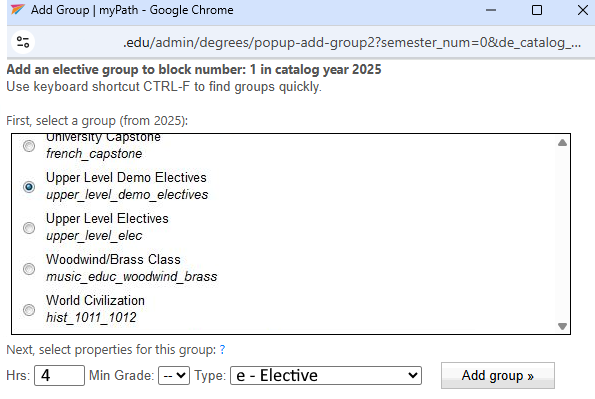
FlightPath will display a list of available groups. Select the group you want to use.
You can then specify the number of hours required and the requirement type for that use of the group.
For example, a degree plan might require:
4 hours
Type: Electives
The same elective group can potentially be used in multiple degree plans with different requirements.
Range of Required Hours#
Some degree plans require a range of hours rather than a fixed number.
For example:
3-6means that between 3 and 6 hours are required from the group.
Use this only when the academic requirement actually calls for a range.
Saving Changes#
Use the save button associated with the semester block or degree-plan form you are editing.
Degree-plan changes are initially stored as draft data. They do not become active for students and advisors until the draft changes are applied.
See Applying Draft Changes for information about making changes live.