Managing Elective Groups#
An elective group (also just called groups) is a collection of courses that can satisfy a particular requirement in a degree plan.
For example, a degree might require a student to complete two courses from a group called Humanities Electives. The group contains the courses that are eligible to satisfy that requirement.
Groups can be simple lists of courses or can use more advanced features such as definitions and branches.
Opening the Groups List#
From the Admin Console, locate the Data Entry section near the bottom of the page.
Select Groups for [catalog year].
The resulting page displays the groups that have been created for that catalog year.
Creating a Group#
Select Add a new group to this year.
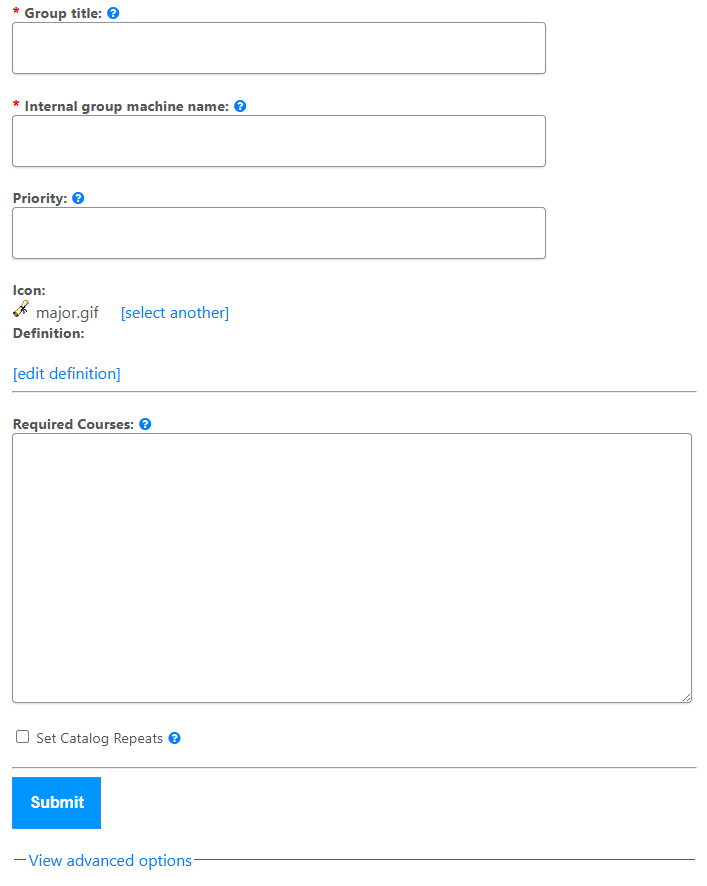
Group Title#
The Group Title is the name displayed to students and advisors.
For example:
Art ElectivesChoose a name that clearly describes the requirement.
Internal Group Machine Name#
Every group has a unique internal machine name.
The machine name is not normally displayed to students or advisors. It must be unique within the catalog year and may contain only letters, numbers, and underscores.
For example:
art_electivesFlightPath will report an error if the machine name is invalid or already in use.
Priority#
A course may qualify for more than one group. FlightPath uses Priority to determine which group should claim a qualifying course first.
Higher priority numbers are evaluated first.
For example:
- Art Electives:
100 - Free Electives:
0
In this example, FlightPath will attempt to use a qualifying course in Art Electives before Free Electives.
If you are unsure what priority to use, 50 is a reasonable starting point for a normal group.
Icon#
FlightPath displays an icon next to groups on degree plans.
Select the icon that best represents the group. The available icons depend on the icons configured for your FlightPath installation.
Required Courses#
For a simple group, enter one course per line.
For example:
ART 101
ART 112
ART 115
Each line represents a possible course that can satisfy the group.
The Required Courses field also supports additional syntax, including specified repeats and other course behaviors. Select the ? help link beside the field for the options supported by your installation.
Specified Repeats#
A course can be explicitly allowed to fill a group more than once by specifying the number of repeats in brackets.
For example:
ART 101 [2]This means that ART 101 may fill the group twice.
The course must also have sufficient Repeat Hours configured in its course record.
Set Catalog Repeats#
When Set Catalog Repeats is enabled, FlightPath can automatically apply specified repeat values based on the repeat hours configured for the courses.
For a typical group, leave this option unchecked unless your institution specifically needs this behavior.
Group Definitions#
Definitions provide a way to construct large course lists without entering every course manually.
See Group Definitions for more information.
Groups with Branches#
Some requirements cannot be represented by a simple list of courses.
For example, a requirement might allow:
- One English course and two History courses, or
- Two English courses and one History course.
Groups with branches can be used to create this type of conditional structure.
See Groups with Branches for more information.
Using a Group in a Degree Plan#
Creating a group does not automatically add it to a degree plan.
After creating the group, it can be added to a semester block within a degree plan. The degree plan determines how many hours or courses must be completed from the group and what requirement type applies.
See Managing Degree Plans for more information.
Saving Changes#
After making changes, select Submit or the appropriate save button on the form.
Group changes are initially stored as draft data. They do not become active for students and advisors until the draft changes are applied.
See Applying Draft Changes for more information.