Advising Settings#
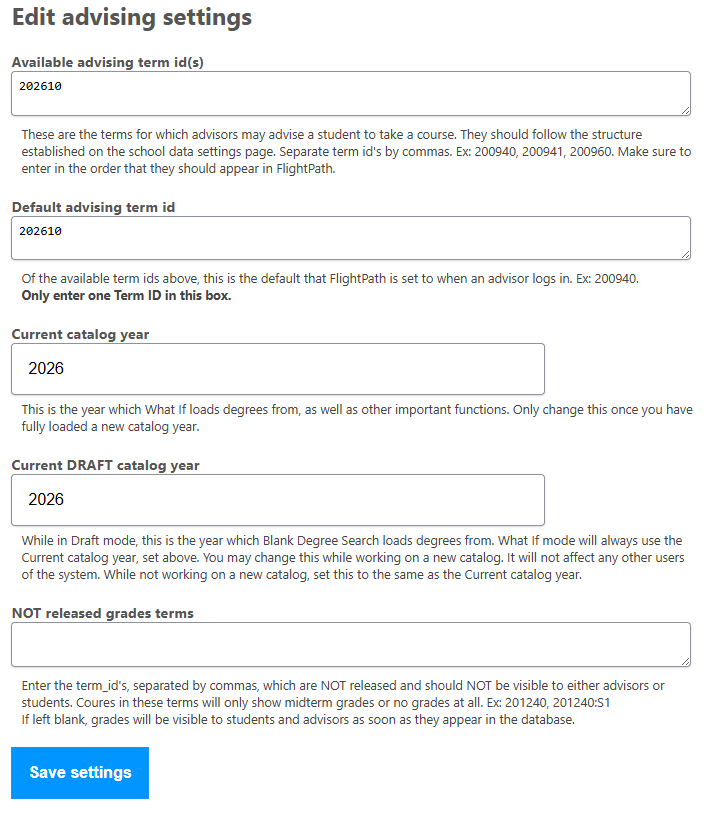
Advising settings control the terms and catalog years that FlightPath uses when advisors work with students.
These settings are accessed from the Admin Console by selecting Edit Advising Settings.
Important: These settings affect advising throughout FlightPath. Review them carefully before changing them.
Available Advising Term IDs#
The Available advising term ID’s field specifies the terms for which advisors may advise a student to take a course.
Enter term IDs separated by commas, in the order you want them to appear in FlightPath.
For example:
200940, 200941, 200960The term IDs should follow the structure defined in School Settings, particularly the Structure of term IDs setting.
Default Advising Term ID#
The Default advising term ID specifies which of the available advising terms is selected by default when an advisor logs in.
For example:
200940The value should be one of the term IDs entered in Available advising term IDs.
Current Catalog Year#
The Current catalog year is the catalog year FlightPath uses for important functions, including What If.
Only change this setting after the new catalog year has been fully loaded.
Current DRAFT Catalog Year#
The Current DRAFT catalog year controls which catalog year is used by Blank Degree Search while working with draft data.
What If mode always uses the Current catalog year.
This setting can be changed while you are preparing a new catalog year without affecting other users of the system. When you are not actively working on a new catalog year, set the Current DRAFT catalog year to the same value as the Current catalog year.
NOT Released Grades Terms#
The NOT released grades terms field identifies terms whose grades should not yet be visible to students or advisors.
Enter term IDs separated by commas.
For example:
201240, 201240:S1Courses in these terms will show only midterm grades or no grades at all, depending on the data available. This is useful if grades are input in batches, or over the course of several days or hours. Entering the term to not release grades here will hide those final grades from appearing until all grades have been entered.
If the field is blank, grades will be visible to students and advisors as soon as they appear in the database.
Saving Changes#
After reviewing the settings, select Save settings.