Getting Started#
Welcome to FlightPath Academics. This documentation provides training and guidance for advisors, faculty, staff, and administrators who use FlightPath at your institution.
Accessing FlightPath#
Most institutions use their campus single sign-on (SSO) system to provide access to FlightPath.
To get started, visit your institution’s FlightPath address. For example:
https://flightpath.example.edu
On the FlightPath welcome page, click the large Access FlightPath button.
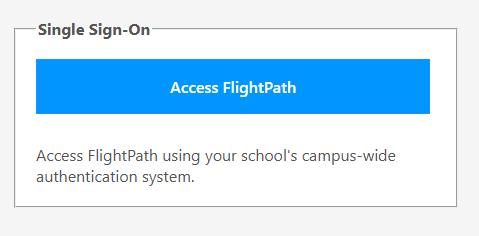
You will be taken to your institution’s single sign-on page. Enter your normal campus username and password, just as you would when signing in to other university systems.
After you successfully authenticate, you will be returned to FlightPath.
Having trouble signing in?#
Your institution may configure FlightPath to allow access only to certain users, groups, or roles. If you can sign in through your institution’s single sign-on system but cannot access FlightPath, your account may not be authorized to use the application.
If you have questions about whether you should have access to FlightPath, contact your institution’s IT department or the FlightPath administrator at your institution.
Faculty and Staff#
FlightPath provides a variety of tools for faculty, advisors, administrators, and other university staff.
Depending on your role and your institution’s configuration, you may use FlightPath to:
- Review student academic progress
- Work with degree audits
- Help students plan their academic paths
- Explore the effects of changing majors or programs
- Monitor students through early alerts and other student-success tools
- Access reports and other administrative features
The sections in this documentation provide detailed instructions and training for these features.
Training and Documentation#
Use the navigation on the left to find documentation for the areas of FlightPath that you use.
If you are new to FlightPath, we recommend starting with the section that corresponds to your role. Additional training materials and videos are available throughout the documentation.