Announcements#
Announcements allow administrators and other authorized users to display short messages to FlightPath users. Announcements appear in the Announcements widget on the dashboard when users log in.
Announcements can be displayed to everyone, including students, or restricted to faculty and staff.
Viewing Announcements#
Announcements are displayed in the Announcements widget on the FlightPath dashboard.
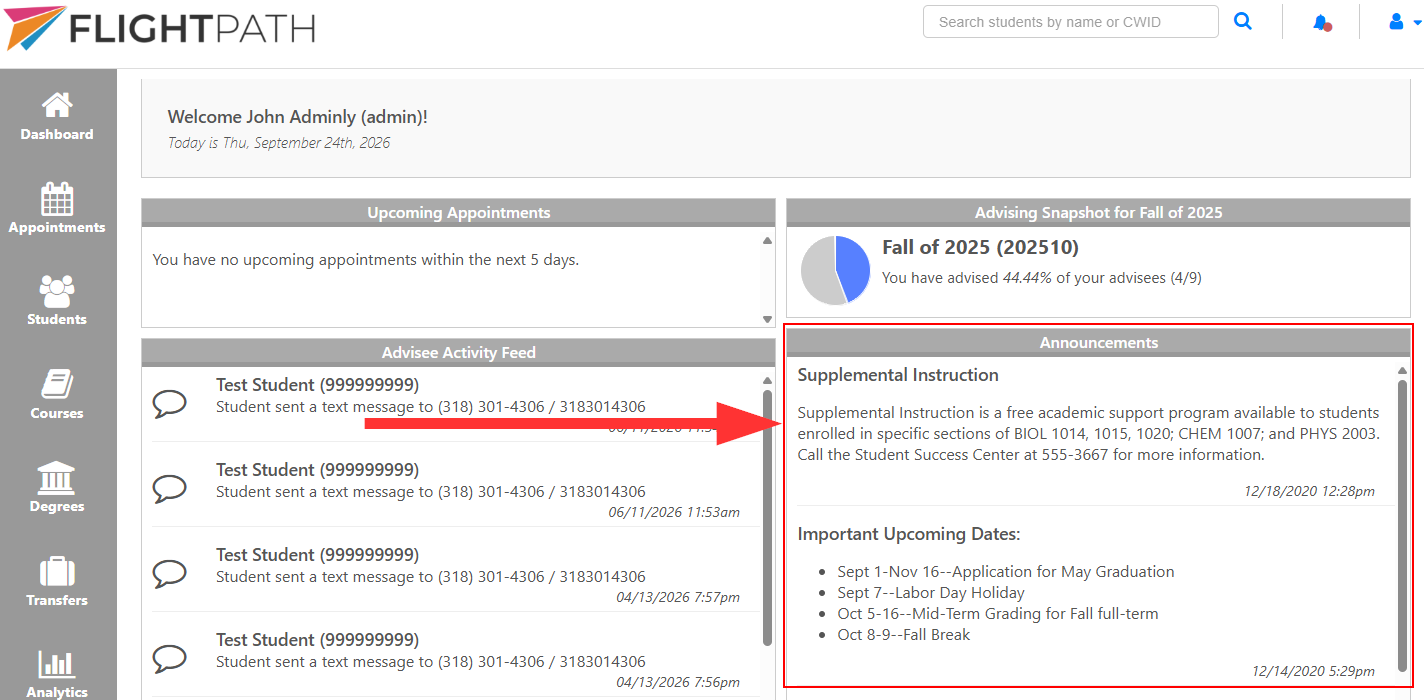
Announcements are displayed with the newest announcements first, based on their date and time.
Managing Announcements#
Users with the appropriate permissions can add, edit, and delete announcements from Admin Tools.
To manage announcements:
- Select Admin Tools from the FlightPath navigation.
- Select Content.
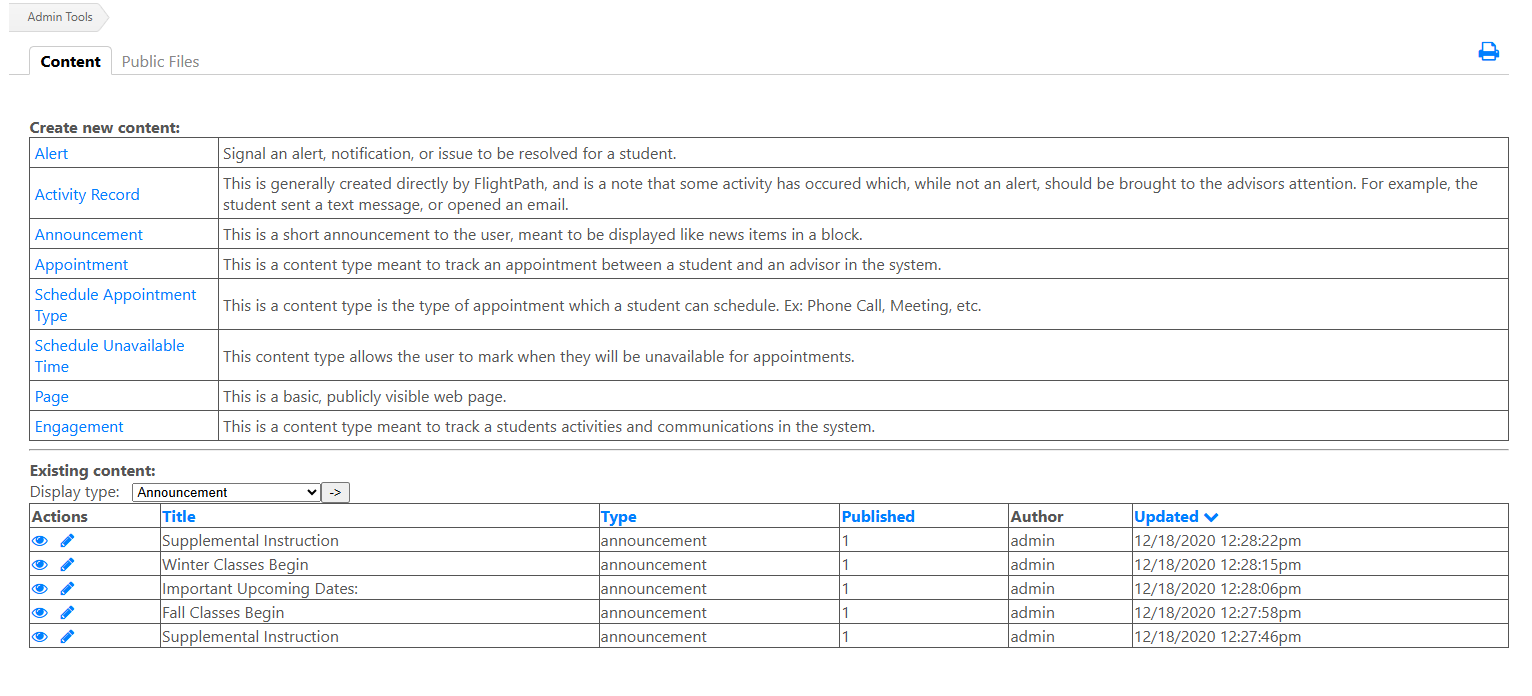
- On the Content page, use the Display type filter to select Announcement.
The existing announcements will be displayed in a list. From this list, you can view or edit an announcement.
An Announcement has the Following Fields:#
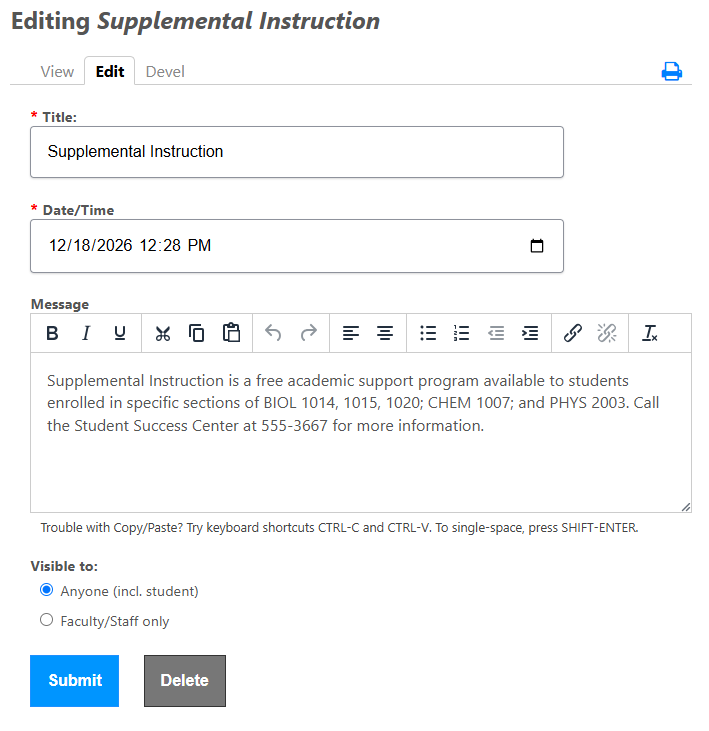
- Title — The title displayed at the top of the announcement.
- Date/Time — Determines when the announcement is dated and its position relative to other announcements.
- Message — The text of the announcement. The message editor supports basic formatting and links.
- Visible to — Determines who can see the announcement:
- Anyone (incl. student) — The announcement is visible to all FlightPath users, including students.
- Faculty/Staff only — The announcement is visible only to faculty and staff.
Adding an Announcement#
To create a new announcement:
- Select Announcement from the Create new content section at the top of the Content page.
- Enter the announcement information.
- Select Submit to save the announcement.
Editing an Existing Announcement#
To edit an existing announcement:
- Go to Admin Tools → Content.
- Select Announcement from the Display type filter, in the middle-section of the screen.
- Find the announcement you want to change.
- Select the Edit icon next to the announcement.
- Make the desired changes.
- Select Submit to save the changes.
You can change the title, date/time, message, and visibility of an existing announcement.
Deleting an Announcement#
To delete an announcement:
- Find the announcement you want to remove on the Content page.
- Select the Edit icon next to the announcement.
- Select Delete at the bottom of the announcement form.
- Confirm the deletion if prompted.
Once deleted, the announcement will no longer appear in the Announcements widget on the dashboard, and eventually removed entirely from the database.