Permissions#
Permissions determine what users can do in FlightPath.
Permissions are assigned to roles, and roles are assigned to staff users. This allows administrators to manage access without having to configure individual permissions for every user.
The basic relationship is:
User → Role → Permissions
For example, an advisor might have the Advisor role, and the Advisor role might have permission to search for students, access advising information, and perform advising functions.
Viewing permissions#
From the Admin Console, select Permissions.
The Permissions page displays the permissions available in FlightPath, organized by the functionality or module that provides them.
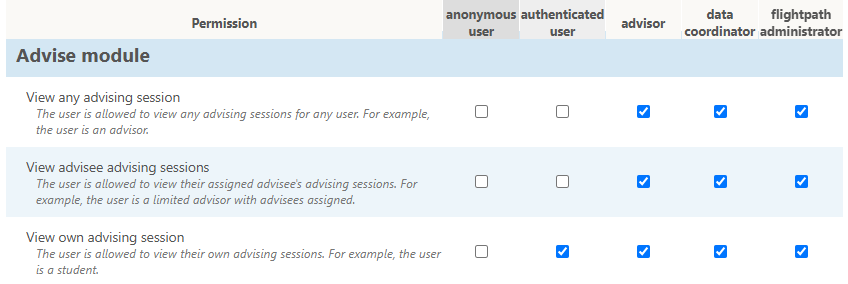
Assigning permissions to a role#
To assign permissions:
- Open Permissions from the Admin Console.
- Locate the permission you want to assign.
- Select the checkbox for the appropriate role.
- Repeat for any additional permissions.
- Select Save at the bottom of the page.
The permissions will then apply to staff users who have that role.
The Anonymous User role#
FlightPath includes an Anonymous User role for any visitor to FlightPath who is not logged-in. This is useful if you wish to expose certain features to prospective students or any other web visitor who will not have credentials to sign into FlightPath.
Tip: Be careful what permissions you assign to this role, as there could be security implications.
The Authenticated User role#
FlightPath includes an Authenticated User role, which refers to any users who are logged in, including students.
This role is different from staff-specific roles such as Advisor or Instructor. It can be used for permissions that should be available to any authenticated user.
For example, the Access logged-in content permission should be available to authenticated users.
Tip: Use this role primarily for assigning permissions to Students.
Faculty/Staff roles#
Faculty/Staff-specific permissions should generally be assigned to an appropriate staff role rather than to the Authenticated User role.
For example, permissions related to advising can be assigned to an Advisor role. A staff member who needs those capabilities can then be given the Advisor role.
This approach makes it easier to manage access as your institution’s needs change.
Use caution with powerful permissions#
Some FlightPath permissions provide significant access to system information or administrative functionality.
Before assigning a permission, consider which users actually need that capability.
In particular, avoid assigning administrative or otherwise powerful permissions to broad roles such as Authenticated User unless the permission is intentionally meant to be available to all logged-in users.
A good approach is to give each role only the permissions required for the work performed by users with that role.
Changing permissions#
Changing a role’s permissions affects all staff users who have that role.
For example, if the Advisor role is given a new permission, every staff user assigned to the Advisor role will receive that permission.
Likewise, removing a permission from a role removes that capability from all users who receive it through that role.
Before making significant permission changes, consider which users and workflows may be affected.