Managing Users#
The Users section of FlightPath allows administrators to view and manage user accounts.
User accounts and automatic imports#
Most institutions do not need to create FlightPath users manually. User accounts are typically imported automatically from the institution’s Student Information System (SIS) or Learning Management System (LMS).
If your institution has an automated user import configured, users should generally be managed in the source system rather than created manually in FlightPath.
Manual user management may still be useful for testing, troubleshooting, or situations where a user needs to be added outside of the normal import process.
Viewing users#
From the Admin Console, select Users.
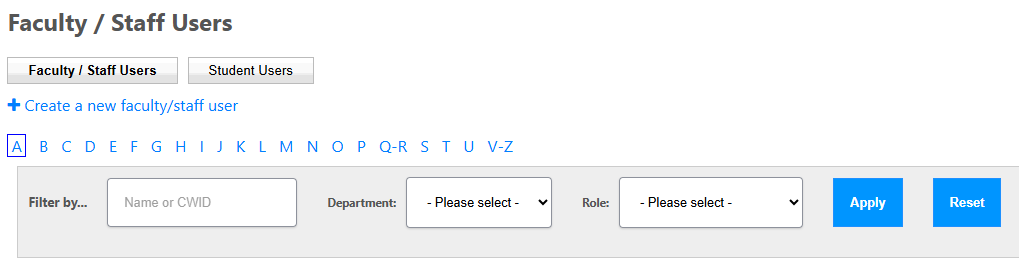
The Users page allows administrators to view and manage the user accounts in FlightPath.
You can select an individual user to view or edit their account information. Select between Faculty/Staff users and Student users with the buttons near the top of the page.
Adding/Editing a user#
The information requested when creating or editing a user may vary depending on whether you are creating a staff or student account.
Assigning roles to a staff user#
To assign a role to a staff user:
- Open the staff user’s account.
- Locate the Roles section.
- Select the role or roles that should be assigned to the user.
- Save the user.
The permissions associated with the selected roles are then available to that user.
For more information about creating and managing roles, see Roles.
Students and roles#
Administrators cannot assign roles to student users. FlightPath treats student accounts differently from staff accounts, and the role system is used to provide additional capabilities to staff members.
Passwords and Single Sign-On#
If your institution uses Single Sign-On (SSO), authentication is handled by the institution’s identity provider rather than by FlightPath.
When SSO is being used, there is no option in FlightPath to change a user’s password. Password changes must be handled through the institution’s identity provider.
If your institution does not use SSO and FlightPath is managing user passwords, the available password options may be different.